1099 Transmittal 
Use this page to create an electronic 1099 file to send to the IRS.
 Fields-1099 Transmittal Page
| Field | Description |
|---|---|
| Report Information | |
| Tax Year | Tax year being reported. The current year is the default selection. |
| Company Federal Tax ID | Required. Many organizations have only one Company Federal Tax ID, but in the case of a multi-company scenario, the transmittal file may be created for only one company at a time. |
| Transmittal Type | Federal or State. |
| File Type |
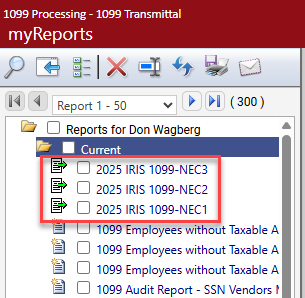
FIRE or IRIS. Selecting the IRIS File Type removes the Transmitter Control Code (TCC) field, since you will upload this file from the site and already will be signed in with your TCC. This option also removes the 1099 Types list boxes and adds a 1099 Type dropdown. Since the IRIS export file is formatted as a CSV, and each 1099 type has a separate file layout, 1099 types must be run one at a time. Also, according to IRS requirements, the maximum number of 1099 records per file is 100, so a separate file is created in myReports for every 100 records:
|
| Payer Name Control |
Identifies the payer. Provided by the IRS, this code may contain 80 characters. |
| Transmitter Control Code | Required to transmit 1099s. Provided by the IRS, this code contains 5 characters. |
| Exceeding Minimum Only | Determines whether only transactions exceeding the minimum amount required to print a 1099 are transmitted, or whether all 1099 transactions, regardless of amount, are transmitted. |
| Contact Information | |
| Name, Phone | Required. Name and phone number of the person the IRS should contact if there are concerns about the transmittal file. The Name may contain 40 characters. |
| E-mail address of the person the IRS should contact if there are concerns about the transmittal file. This entry may contain 35 characters. | |
After making your entries, click the Create button to create the transmittal file and send it to myReports.
From myReports, click the 1099 Transmittal link on the left side of the page. A File Download pop-up opens on the right side of the page.
Click the Save button, and save the file to a folder on your computer. When you are ready to send the file to the IRS, select it from this location.
To see help for another page in the 1099 Processing workflow, click the appropriate link provided below:


